
How to Convert Payment Receipts to Excel (Without Copy-Paste)
Stop retyping Nequi, Daviplata, and bank screenshots into spreadsheets. Extract structured payment data and export cash control to the Excel format you already use.
2026-08-22 · 7 min read
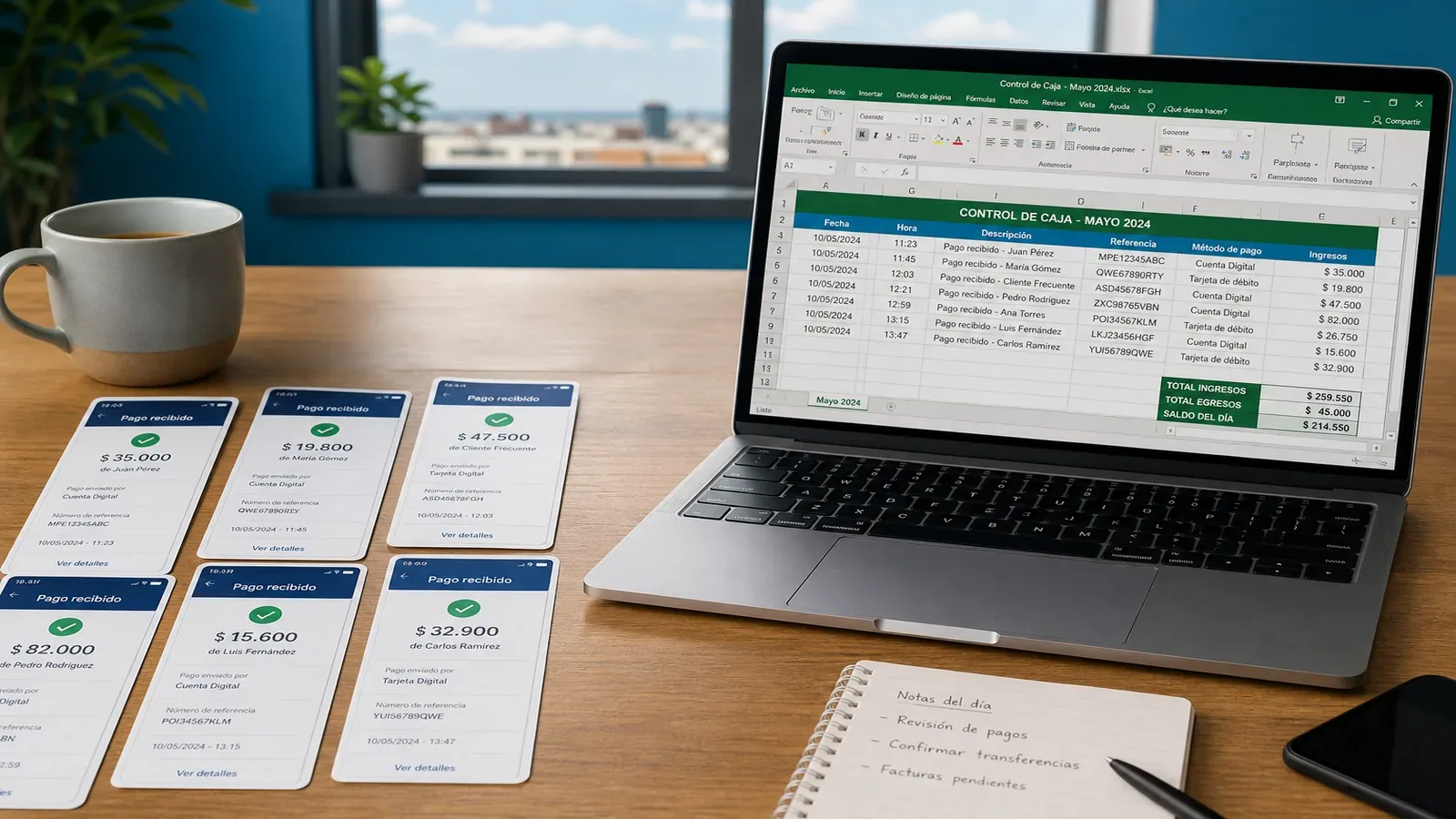
The real job is not “OCR a receipt”
Ops and finance desks do not need another pretty scanner. They need the amount, date, reference, and payment method in the spreadsheet that already runs the business — cierre de caja, control de pagos, or a custom workbook.
When payments arrive as WhatsApp screenshots and PDF confirmations, someone still copies fields by hand. That is the job Jorora Documents finishes.
A workflow that holds under volume
A durable receipts-to-Excel loop looks like this:
- Collect a batch of screenshots and PDFs (not one file at a time forever)
- Extract structured fields with a generic schema — never invent missing values
- Normalize payment methods and currency through a country adapter (Colombia first)
- Validate amounts/dates, flag possible duplicates, then review
- Export into a system template or the Excel columns your desk already trusts
Colombia first, international core
Nequi, Daviplata, Bancolombia, and Bre-B matter for the first market. They do not belong hardcoded inside the product core. Country adapters own local rails; the engine stays ready for Mexico, the US, Spain, and more.
Use your Excel — don’t replace it
Upload the workbook you already run. Confirm mappings like Fecha → transaction date, Banco → payment method, Valor → amount. Jorora fills that layout instead of forcing a generic export nobody asked for.
Ready to convert a receipt batch?
See sample Nequi / bank rows first — no signup. Then upload payment screenshots and export cash control to Excel.